A clinic owner called us last year because she'd received a letter from a law firm (the kind with a wheelchair on the letterhead) telling her that her practice website failed ADA compliance and she had thirty days to fix it or face litigation. The site was built by a friend's nephew three years earlier. She was facing a $10,000+ remediation bill on top of the legal notice.
We rebuilt the site to WCAG 2.2 AA in about a week, for a fraction of the quote. That call is the reason this checklist exists.
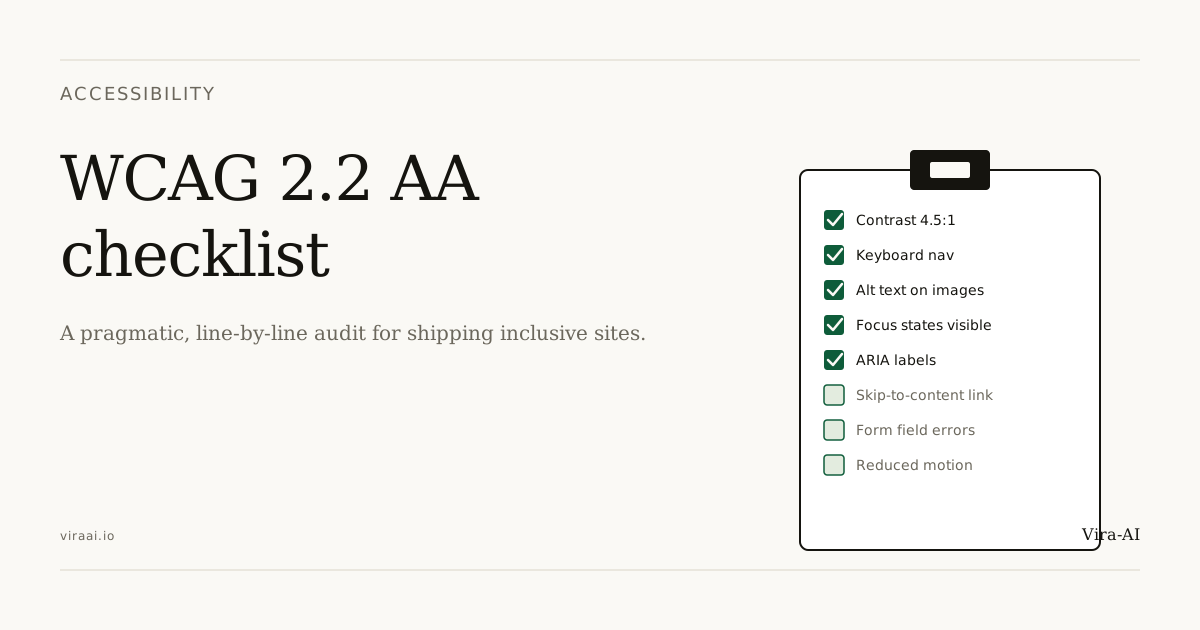
WCAG 2.2 AA is the standard most U.S. and Canadian accessibility lawsuits cite, and the level Google and modern browsers assume your site meets. Here's the exact 14-point checklist we run on every Vira-AI launch: what each item means, how we verify it, and the misconceptions that get in the way.
Why WCAG 2.2 AA matters for a small business
The legal exposure is real. ADA-driven website lawsuits in the United States run into the thousands of cases per year, and small businesses are a frequent target because their sites often fail basic checks. Most never go to trial; they settle for a few thousand dollars and a remediation commitment. The cost of defense alone can exceed the cost of fixing the site.
Accessible sites reach a larger audience too (roughly one in four North American adults lives with some form of disability) and they convert better because the underlying structure is clearer. Keyboard-friendly navigation, readable contrast, and labelled forms help everyone. Doing the right thing here also moves the numbers.
The 14-point launch checklist
Every Vira-AI site runs through the same checks before it goes live. For each item: what it is, then how we test it.
1. Color contrast ratios
Text and meaningful UI elements meet minimum contrast against their background: 4.5:1 for normal text, 3:1 for large text and UI components.
We run axe DevTools and Lighthouse, plus a manual review of branded colors the tools miss. Automated audits catch roughly 70% of issues; the rest need human eyes.
2. Alternative text for images
Every meaningful image has descriptive alt text. Decorative images use empty alt (alt="") so screen readers skip them.
We review alt text at launch and whenever new content is added. "Image of smiling dentist" is not descriptive. "Dr. Reyes in the Austin office with hygienist Carla" is.
3. Keyboard navigation
Every interactive element is reachable and operable using only the keyboard.
We tab through every page and verify focus order is logical. The free test: put down your mouse and try to book an appointment using only Tab, Enter, and Space.
4. Visible focus indicators
The currently focused element is always visible, with a clear outline that meets contrast requirements.
We check focus styles on every interactive element. The default browser outline usually fails: we replace it with a contrast-meeting ring.
5. Semantic HTML
We use the right element for each piece of content: headings for headings, lists for lists, buttons for buttons, landmarks for regions.
We validate the document outline and confirm landmarks (header, nav, main, footer) are present and correctly labeled. Divs and spans are not substitutes for buttons and headings, even when they look the same.
6. ARIA labels
Custom interactive widgets (menus, dialogs, sliders) carry appropriate ARIA labels so assistive tech can identify them.
We test every custom widget with a screen reader before launch. NVDA on Windows and VoiceOver on Mac are our defaults. An unlabeled button icon means screen reader users hear nothing useful.
7. Form labels
Every form field has a programmatically associated label and clear instructions.
We submit every form and verify labels, error states, and required-field indicators read correctly aloud. Placeholder text is not a label.
8. Skip links
A "Skip to main content" link appears first in the tab order and jumps focus past the navigation.
We press Tab on a fresh page load and confirm the skip link is the first focusable element. A five-minute build with a noticeable payoff for screen reader and keyboard users.
9. Heading hierarchy
Headings follow a logical order (H1 → H2 → H3) without skipping levels.
We review every page's heading outline with a document-map tool and fix any gaps. Skipping from H1 to H3 is one of the most common audit failures and one of the easiest to avoid.
10. Link purpose
Every link's text makes its destination clear out of context ("Read our pricing", not "click here").
We scan every page for generic link text and rewrite anything ambiguous. Screen reader users often pull up a list of all links; "click here" tells them nothing.
11. Motion and prefers-reduced-motion
Non-essential animation respects the user's reduced-motion preference and never auto-plays for long.
We toggle the OS reduced-motion setting and confirm animations are muted or removed. It matters most for vestibular disorders and is also a usability win on slow devices.
12. Language attribute
The page declares its primary language, and any embedded passages in another language are flagged.
We verify the lang attribute is present on the root element and correct. Without it, screen readers may pronounce every word with the wrong accent.
13. Error identification
Form errors are described in text, programmatically associated with their fields, and announced to assistive tech.
We submit invalid data on every form and verify the error message is both visible and announced. Red text under a field isn't enough if it isn't tied to the field via aria-describedby.
14. Touch target sizes
Interactive elements on mobile meet the 24×24 CSS pixel minimum; we aim for 44×44 on critical actions.
We measure touch targets on the live mobile layout and resize anything below threshold. WCAG 2.2 sets 24×24 as the floor; 44 is closer to what adult fingers need.
Three accessibility myths that get in the way
"We have an accessibility widget, so we're covered." Overlay widgets do not make a site compliant. Courts have repeatedly ruled against them, and they regularly break the screen reader experience. Real accessibility is built into the markup, not bolted on.
"Accessibility is just for blind users." WCAG covers more: low vision, motor impairments, cognitive differences, hearing loss, and photosensitive epilepsy. A site that only worries about screen readers misses most of the standard.
"It's expensive." Retrofitting a site built without accessibility in mind costs more. Building it in from day one adds 5–10% to the build cost. The difference between $2,999 and $3,299 is a lot smaller than between $2,999 and a $10K remediation bill.
What to do if your current site fails the list
Don't panic, and don't ignore it. Most failures are fixable in a focused audit-and-remediation pass that takes days. The expensive path is to keep shipping without fixing it; the cheap path is to know where you stand.
If you'd like a hand, get in touch and we'll run a quick audit. To see how we build accessibility in from day one, have a look at our $2,999 flat-fee process, who's on the build team, or our recent launches.